
Why Your Phone Battery Drains So Fast - And What's Actually Going On

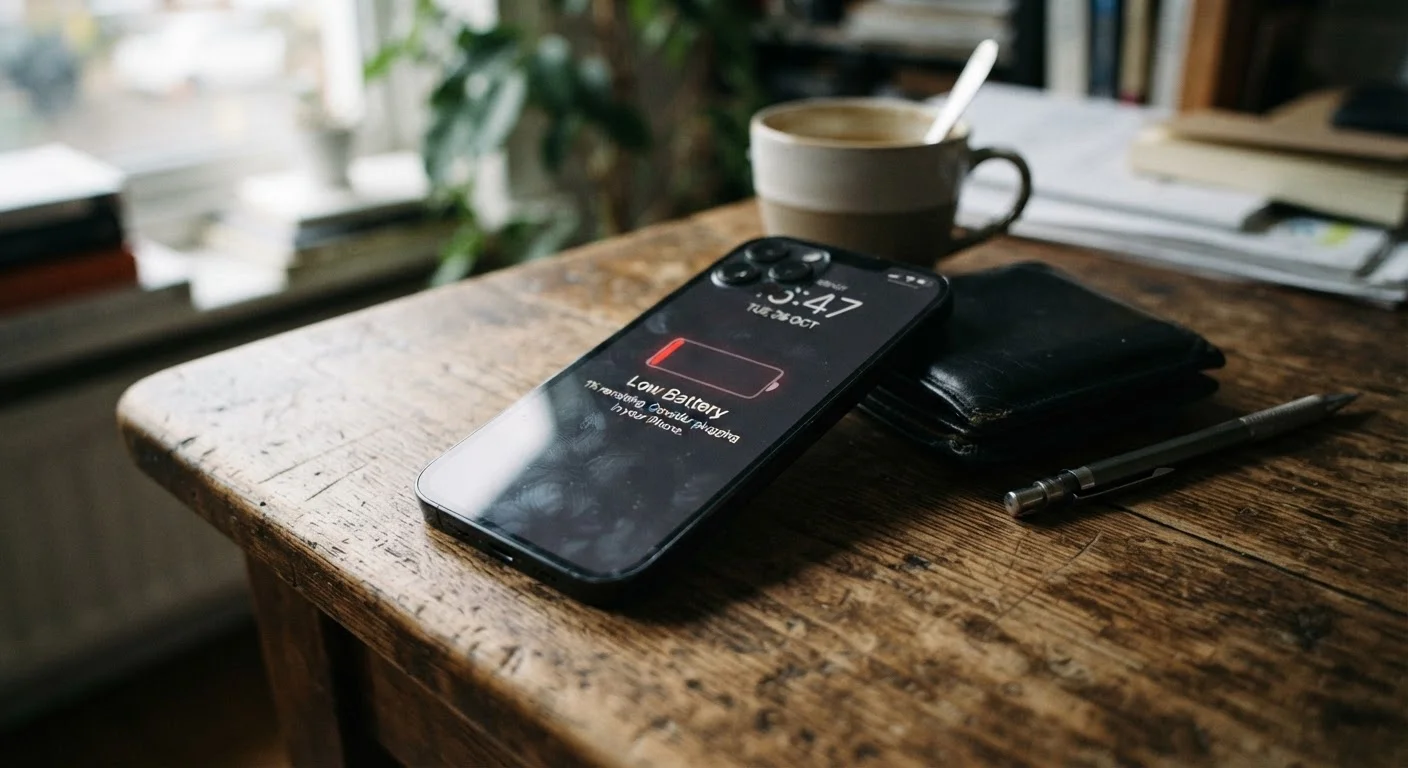
Photo: QuickSearches.net | It Doesn't Get Quicker Than This! editorial
Key Takeaways
- Screen brightness is typically the single largest battery drain on a smartphone.
- Background app refresh silently consumes power even when you're not actively using your phone.
- Lithium-ion batteries degrade over time, reducing how much charge they can hold.
- Poor cellular or Wi-Fi signal forces the radio to work harder, accelerating drain.
- Built-in battery health tools can reveal whether the battery itself is the root cause.
- Several drain causes are controllable through settings adjustments - no new hardware needed.
The Display Is Usually the Biggest Culprit
The screen is the most power-hungry component on most smartphones, and it's often the first place to look when battery life disappoints. Every pixel lit up at high brightness draws energy, and larger screens with high refresh rates - a feature increasingly common on mid-range and flagship devices - multiply that demand.
Auto-brightness adjusts the display based on ambient light, which helps. But if you habitually keep brightness maxed out indoors, or if your phone's screen stays on for long idle periods, those minutes add up across a day. Check your screen-on time in your battery usage settings - most phones now break down consumption by component and app.
Check Your Battery Usage Breakdown First
Background Activity: The Drain You Don't See
Background app refresh allows apps to fetch new data - emails, news, social media updates - even when you're not actively using them. This is convenient, but it means your phone's processor, radio, and sometimes GPS are periodically waking up and doing work without any visible action on your part.
Location services are a particularly significant drain when multiple apps request continuous access. A navigation app using GPS constantly is expected; a coupon app pinging your location every few minutes is less justified. Your phone's battery settings show a per-app breakdown - apps consuming a disproportionate share in the background are good candidates for restricted permissions.
Push notifications also contribute. Each alert that arrives requires a network handshake, a processor wake, and a display flash. Individually minor; collectively meaningful over a full day.
Force-Closing Apps Isn't Always the Answer
Wireless Signals and Network Strain
Your phone's cellular and Wi-Fi radios are designed to maintain connection even in weak signal areas - and doing so takes more power. If you're in a building with poor reception, your phone is likely boosting its antenna output and scanning for towers more aggressively, which accelerates drain noticeably.
The same applies to Bluetooth. Keeping Bluetooth active when no device is paired causes periodic scanning. If you're not using wireless accessories, toggling it off is a small but real efficiency gain.
Wi-Fi calling, which routes voice calls over a Wi-Fi connection, can actually conserve battery in areas where cellular signal is weak - because the Wi-Fi radio typically operates more efficiently in that scenario than the cellular antenna straining for signal.
Battery Aging: The Factor No Setting Can Fix
Lithium-ion batteries, the type in virtually every smartphone, degrade chemically with each charge cycle. Over time, the battery holds a smaller total charge - so what once powered your phone through a full day now runs out by mid-afternoon, even if your usage habits haven't changed.
This is normal and expected, not a defect. Most manufacturers design batteries to retain around 80% of their original capacity after several hundred full charge cycles, though real-world results vary based on charging habits, heat exposure, and other factors.
Battery health tools built into both iPhone and many Android devices give you a percentage reading. If your battery health is significantly degraded, a battery replacement - rather than any software adjustment - is the appropriate fix. For habits that slow this degradation over time, see our guide on extending your phone's useful life.
~80%
Typical battery capacity retained after 500 full charge cycles
Apple's published battery specifications indicate iPhone batteries are designed to retain up to 80% of original capacity at 500 complete charge cycles under normal conditions.
30-60%
Share of battery usage attributable to the display
Industry teardowns and power analysis research consistently find the display accounts for a substantial portion of total smartphone energy consumption, varying by screen technology and brightness setting.
Up to 20%
Battery savings possible with Low Power Mode
Smartphone manufacturers report that battery saver and low-power modes can extend runtime meaningfully by throttling background processes, with specific gains varying by device and usage pattern.
What You Can Actually Control
Several settings adjustments have a genuine, measurable impact on battery life. Reducing screen brightness or timeout duration, restricting background refresh for apps that don't need it, auditing location permissions, and disabling push for email accounts that don't require instant delivery are all practical starting points.
Dark mode on OLED screens - where black pixels are literally off - reduces display power consumption measurably. High-performance or gaming modes, if your phone offers them, accelerate drain and are worth turning off during normal use.
If your phone has a Low Power Mode (iPhone) or Battery Saver mode (Android), these settings automatically throttle background activity and sometimes reduce performance, extending the time before you need to charge. They're useful for stretching through a long day, though not intended for permanent use.
For a deeper look at how software updates factor into battery behavior, our article on why software updates matter on older phones covers what those patches actually contain and how they affect performance. And if you're also managing storage pressure alongside battery issues, our guide to freeing up phone storage addresses common overlap between storage strain and device sluggishness.
Frequently Asked Questions
The content on this site is provided for informational purposes only and should not be considered a substitute for professional advice. While we strive to provide accurate and up-to-date information, we make no guarantees regarding its completeness or accuracy. Always consult a qualified professional for advice specific to your circumstances before making any decisions