
Smartphone Storage Is Full: What to Delete, What to Keep, and What to Move

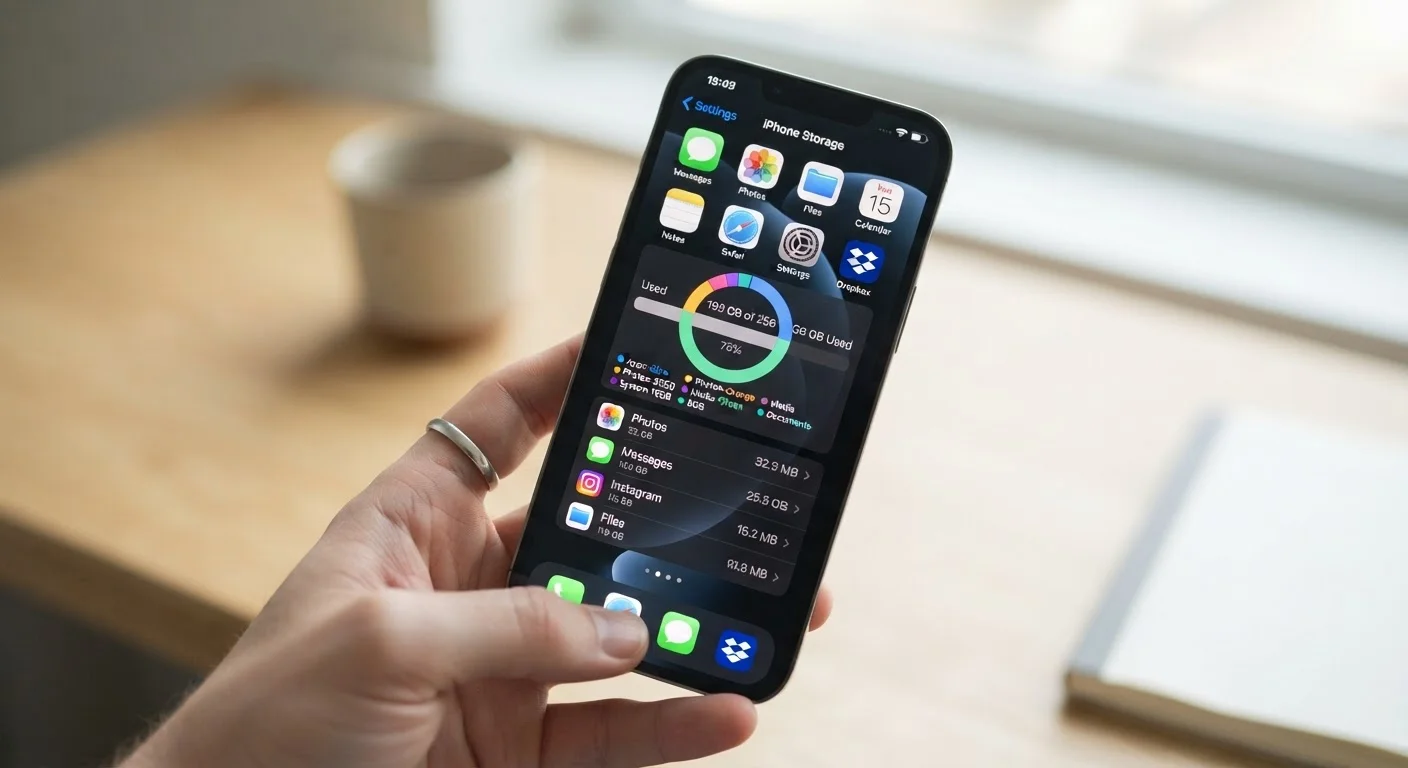
Photo: QuickSearches.net | It Doesn't Get Quicker Than This! editorial
Key Takeaways
- Photos and videos are usually the biggest storage culprits on any smartphone.
- App cache and offline downloads accumulate silently and are safe to clear regularly.
- Cloud backup lets you delete local copies of files without permanently losing them.
- Offloading unused apps frees space without erasing your settings or account data.
- A monthly storage check prevents the problem from becoming a crisis.
Why Your Phone Runs Out of Space Faster Than You Expect
Modern smartphones pack impressive cameras, high-resolution screens, and dozens of apps - all of which quietly consume storage without obvious warning signs. By the time you see the "storage full" notification, the problem has usually been building for months.
The typical culprits aren't the ones most people suspect. It's rarely the apps themselves - it's the data those apps accumulate: downloaded podcasts, cached streaming content, duplicate photos from burst shots, and old message attachments you never cleared. Understanding where the space actually went is the first step to reclaiming it intelligently.
This checklist walks you through a full storage audit - what to delete outright, what to move to the cloud or a computer, and what to leave alone. If you're also noticing sluggish performance alongside storage issues, those two problems are often connected; see our article on what's really draining your phone's resources for related context.
Built-in Phone Storage Settings
Provides a category-by-category breakdown of what's using space - the essential starting point for any storage audit.
Cloud Photo Backup Service
Automatically backs up photos and videos so local copies can be safely deleted to free space.
Computer or External Hard Drive
Allows permanent local backup of photos, videos, and documents outside of a subscription cloud service.
Duplicate Photo Finder (built-in or app)
Identifies and flags identical or near-identical photos to make bulk cleanup faster and safer.
How to Run Your Storage Audit
Before deleting anything, pull up your phone's built-in storage breakdown. On iPhone, go to Settings → General → iPhone Storage. On Android, look under Settings → Storage (the exact path varies slightly by manufacturer). Both views show you a category-by-category breakdown - photos, apps, system data, and other - ranked by size.
This overview tells you where to focus first. If photos take up 18 GB and apps take up 4 GB, start with photos. Don't spend 20 minutes deleting apps to recover 200 MB when your camera roll is the real issue.
Back Up Before You Delete Anything
Work through the checklist groups below in order. The "must" items alone will typically recover the most space with the least risk of losing anything important. The "should" and "nice to have" items are worth revisiting once you've handled the high-impact steps.
If this audit is part of preparing to switch to a new device, our guide on transferring everything to a new phone without losing data covers exactly how to carry this work forward safely.
Step 1: Check Your Storage Breakdown
Step 2: Tackle Photos and Videos
Step 3: Clear App Cache and Downloads
Step 4: Audit Your Apps
Step 5: Clear Message Attachments
Step 6: Ongoing Maintenance
What to Move vs. What to Actually Delete
Not everything that leaves your phone has to be gone permanently. Cloud storage services let you keep photos, documents, and videos accessible from any device while removing them from local storage. Once you've confirmed a backup exists and synced successfully, deleting the local copy is safe.
The same logic applies to large files - downloaded movies, saved podcasts, or offline maps. These are designed to be temporary. Download them when you need them; delete them when you don't.
What genuinely warrants deletion rather than moving: duplicate photos (especially from burst mode or editing sessions), app cache data, old text message threads with heavy media attachments, and apps you haven't opened in six months or more. These items rarely have sentimental or practical value and free up real space quickly.
For anyone who wants to think about their broader relationship with digital content and screen time, our editorial on habits that extend your phone's useful life outlines sustainable routines - including regular storage hygiene - that keep devices running well longer.
Clearing Cache Is Safe - Clearing Data Is Not
The content on this site is provided for informational purposes only and should not be considered a substitute for professional advice. While we strive to provide accurate and up-to-date information, we make no guarantees regarding its completeness or accuracy. Always consult a qualified professional for advice specific to your circumstances before making any decisions