
Setting Up a New Phone Without Losing Everything From Your Old One

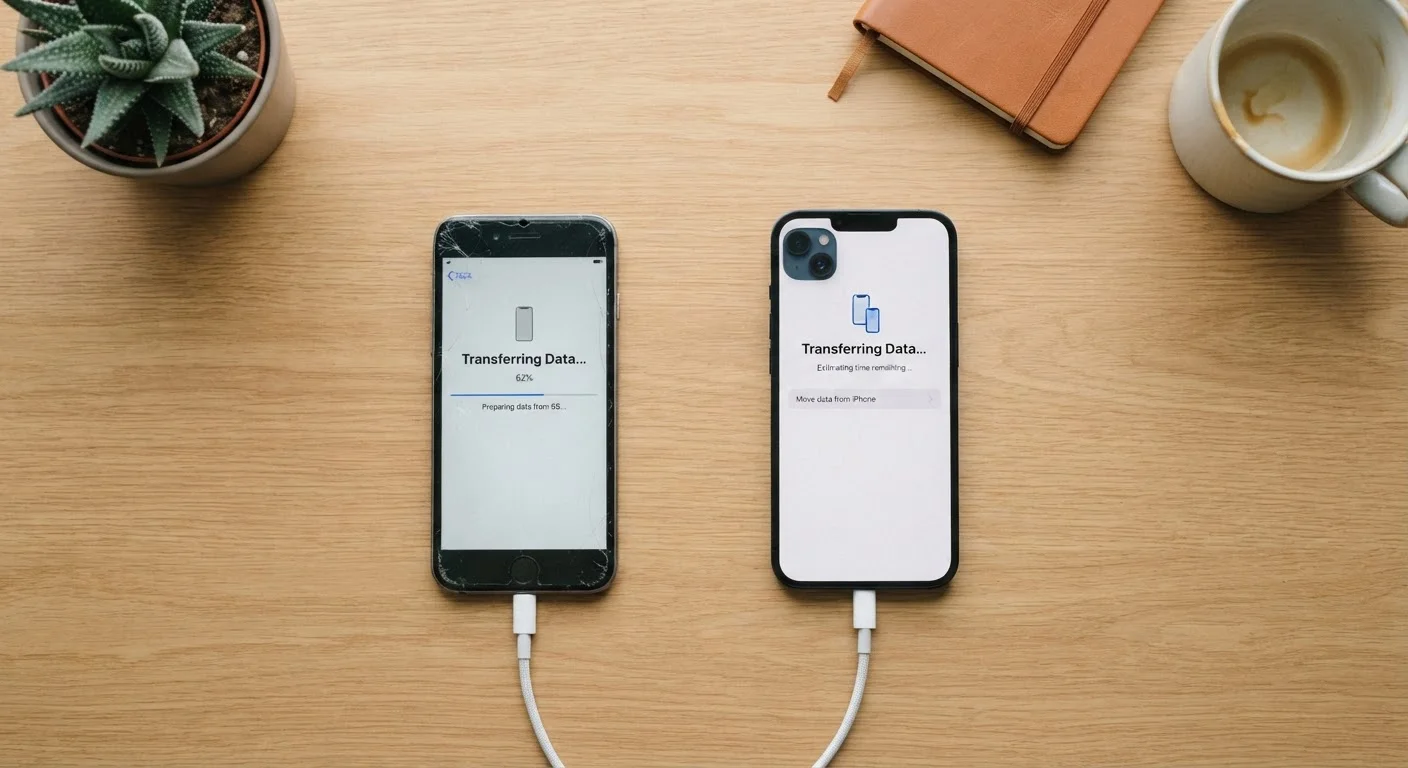
Photo: QuickSearches.net | It Doesn't Get Quicker Than This! editorial
Key Takeaways
- Back up your old phone before doing anything else - this is the single most important step.
- Android and iPhone each have built-in transfer tools that handle contacts, photos, and most app data automatically.
- Switching between Android and iPhone requires extra planning since some data won't transfer automatically.
- Verify your backup completed successfully before wiping or selling your old device.
- Some apps and security settings - like two-factor authentication - require manual reconfiguration after switching.
Before You Touch the New Phone
The most common mistake people make when getting a new phone is skipping straight to the exciting part - setting it up - without securing what's already on their old device. A proper backup takes less than 10 minutes and eliminates nearly all risk of losing data.
For iPhone users: Open Settings, tap your name at the top, then iCloud > iCloud Backup > Back Up Now. Make sure you're on Wi-Fi. When the timestamp updates, the backup is complete. You can also back up to a computer using Finder (macOS Catalina and later) or iTunes (Windows).
For Android users: The path varies slightly by manufacturer, but generally go to Settings > Google > Backup and confirm Back up to Google Drive is enabled, then tap Back up now. Photos and videos sync separately through Google Photos if enabled.
Also take note of anything that won't be in a standard backup: authenticator app codes, SMS-based two-factor authentication setups, and data from apps that don't sync to the cloud. Write these down or screenshot them now.
What you will need
Transferring Between Two iPhones or Two Android Phones
Same-ecosystem transfers are the smoothest experience available. Both platforms offer a direct device-to-device option that transfers contacts, photos, messages, app data, and most settings in one session.
iPhone to iPhone (Quick Start): Place both phones near each other with Bluetooth enabled. Your new iPhone will display a Quick Start screen automatically. Follow the prompts to authenticate with your Apple ID, then choose to transfer directly from your old phone or restore from an iCloud backup. Direct transfer is faster if both devices are charged and on the same Wi-Fi network.
Android to Android: Most Android phones display a setup wizard on first boot that includes a data transfer option - either via cable or Wi-Fi Direct. Google's built-in restore process pulls your apps, contacts, Wi-Fi passwords, wallpaper, and many app settings from your Google account automatically. Samsung devices also offer Smart Switch, which can be used via cable, Wi-Fi, or even a microSD card for a more complete local transfer.
Complete a backup on your old phone
Before starting any transfer, trigger a manual backup on your old device. For iPhone, go to Settings > [Your Name] > iCloud > iCloud Backup > Back Up Now. For Android, go to Settings > Google > Backup > Back up now. Wait for confirmation that the backup completed before proceeding.
Start the new phone and enter setup
Power on your new phone. Both iPhone and Android will walk you through initial setup screens. When prompted to transfer data or restore from a backup, choose that option rather than setting up as a new device. Do not skip this screen - it's much harder to initiate a full transfer after setup is already complete.
Choose your transfer method
Select whether to transfer directly from your old phone (device-to-device) or restore from a cloud backup. Direct transfer is generally faster and more complete - choose it if both phones are available and charged. Cloud restore works well if your old phone is unavailable or already reset.
Follow the on-screen prompts and wait for transfer to complete
Place both phones near each other, keep them on the same Wi-Fi network, and let the transfer run. Avoid using either phone during the transfer. The progress bar can stall briefly - this is normal. Only proceed once the transfer screen confirms it's complete.
Verify your data and reconfigure critical settings
Check your photos, contacts, and key apps before considering the process done. Log into email and financial apps to confirm they work. Reconfigure your authenticator app and any accounts that use SMS-based two-factor authentication on the new device number.
Switching Between iPhone and Android
Cross-platform moves require more manual effort because Apple and Google use different formats and ecosystems for storing data.
iPhone to Android: Google offers a free app called Switch to Android (available on the App Store) that copies contacts, photos, videos, calendar events, and some messages over a USB-C cable. Before starting, disable iMessage on your old iPhone under Settings > Messages - skipping this step will cause text messages sent to your number to disappear into iMessage instead of arriving on your new Android device.
Android to iPhone: Apple's Move to iOS app (available on Google Play) handles contacts, message history, photos, videos, bookmarks, and some account details over a private Wi-Fi connection. Install it on your Android before starting your new iPhone's setup - it must be run during the iPhone's initial setup process, not after.
In both cases, apps themselves don't cross platforms. You'll need to reinstall each app from the new platform's app store and log back in. Make a list of the apps you use daily and their login credentials beforehand.
Disable iMessage Before Leaving iPhone
If you're also changing carriers around the same time, see our guide on switching wireless carriers without losing your number for step-by-step help with the porting process.
Final Checks Before You Let Go of the Old Phone
Once your new phone is set up and you've confirmed your data is there, run through this checklist before wiping or selling the old device.
- Open your photos app and verify recent photos transferred correctly - spot-check a few from different dates.
- Confirm your contacts are present and complete on the new device.
- Log back into email, banking, and any other critical apps and verify they work.
- Reconfigure two-factor authentication (2FA) apps. If you use an authenticator app like Google Authenticator, you must transfer each account manually - these codes are not included in standard backups.
- Sign out of all accounts on the old phone and perform a factory reset before selling, trading in, or recycling it.
For more context on why that last step matters, our article on what happens to your data when a phone is lost or stolen explains what can be accessed on a device that isn't properly wiped.
Plan Your Next Bill Cycle, Too
The content on this site is provided for informational purposes only and should not be considered a substitute for professional advice. While we strive to provide accurate and up-to-date information, we make no guarantees regarding its completeness or accuracy. Always consult a qualified professional for advice specific to your circumstances before making any decisions