
Everyday Devices

Things People Overlook When Setting Up a New Tablet

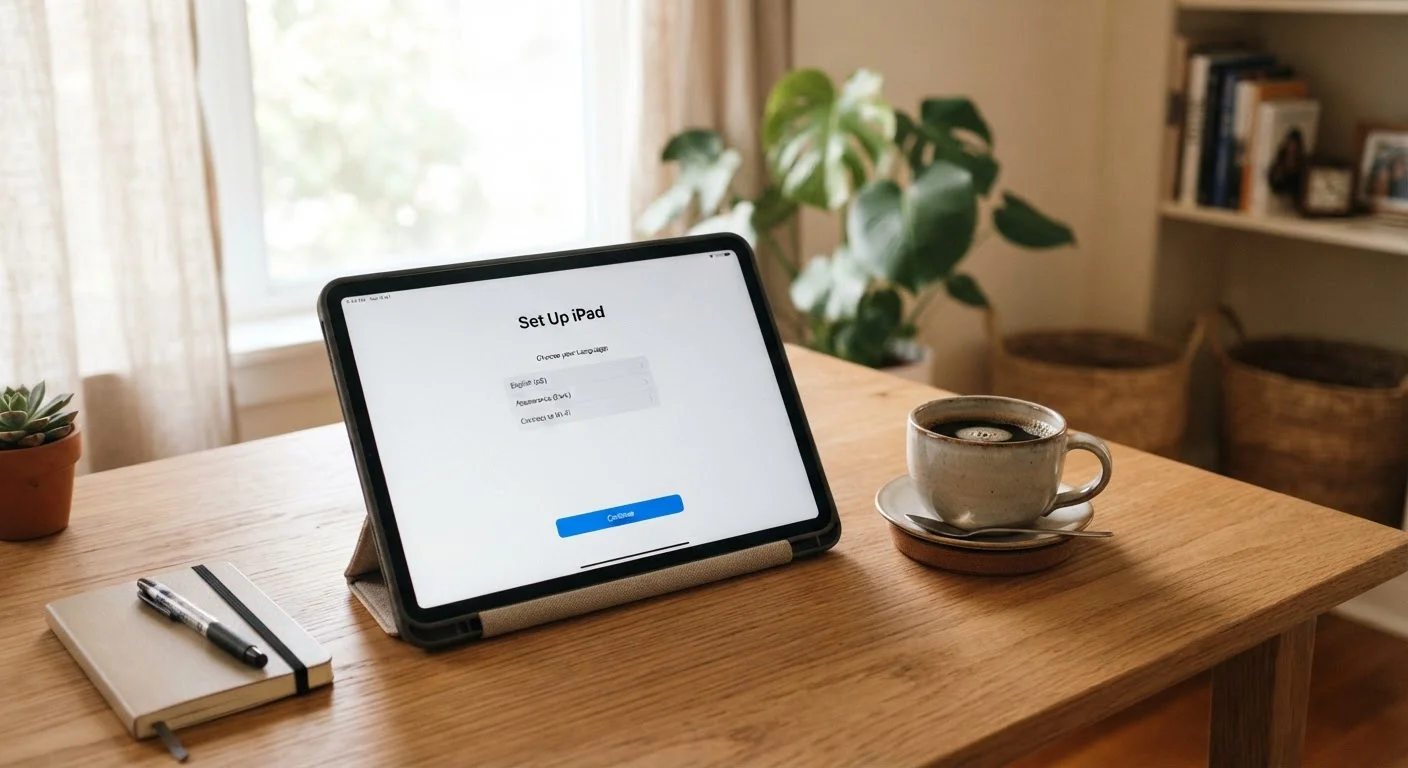
Things People Overlook When Setting Up a New Tablet

Photo: QuickSearches.net | It Doesn't Get Quicker Than This! editorial

Most tablet setups focus on the basics — but missing a few key steps early on leads to frustration later. Here's what's worth doing from the start.

Key Takeaways

  • Skipping storage planning early on leads to cluttered, slow tablets within months.
  • Auto-backup settings are often off by default — enabling them protects your data immediately.
  • Screen time and privacy controls require manual configuration on most devices.
  • Connecting to the wrong Wi-Fi band can noticeably slow down your tablet's performance.
  • System and app updates should run before you start using a new tablet in earnest.

Why Setup Mistakes Are So Common

Unboxing a new tablet is satisfying, and most people want to start using it immediately. The guided setup process helps with accounts and passwords, but it glosses over a lot of configuration that actually matters for day-to-day use. The result is a device that technically works — but one that hasn't been tuned to protect your data, perform well on your network, or stay useful long-term.

If you're deciding whether a tablet is even the right device for your needs, this comparison of tablets and laptops is a useful starting point. But if you already have one in hand, the setup steps below are worth the time.

1

Ignoring storage limits from day one.

Why it happens: New tablets feel fast and spacious right out of the box, so storage rarely feels urgent until apps, photos, and downloads have quietly eaten through the available space.
How to avoid: Check total storage in your device settings before downloading anything, and decide early how you'll manage it — whether that's a microSD card (if supported), a cloud storage plan, or simply being selective about what you install. A little discipline at the start prevents the dreaded 'storage full' message later.
2

Leaving automatic backup turned off.

Why it happens: Most tablets don't enable cloud backup by default, and the setup wizard makes it easy to tap past that screen without realizing what you're skipping.
How to avoid: Go into your device's settings — typically under Accounts or System — and confirm that automatic backup is active and pointed at a destination you actually control. This covers photos, app data, and settings, so if the device is lost or damaged, recovery is straightforward.
3

Connecting to the 2.4 GHz Wi-Fi band when a 5 GHz band is available.

Why it happens: Many home routers broadcast both bands under similar or identical names. People often connect to whichever network appears first without knowing which band it represents.
How to avoid: Check your router's app or admin page to identify each band. If your router and tablet support Wi-Fi 5 or Wi-Fi 6, joining the 5 GHz network delivers faster speeds at shorter range — better suited to streaming and video calls. If you're unsure how your home network is set up, this overview of home internet basics explains what to look for.
4

Skipping software updates before starting to use the device.

Why it happens: Updates feel like an interruption, especially when you're eager to start using something new. Many people postpone them indefinitely.
How to avoid: Run both the system update and any pending app updates on day one, while you're still in setup mode. Manufacturers regularly ship tablets with firmware that's already a few versions behind. Installing updates immediately closes known security gaps and prevents compatibility issues with apps you install later.
5

Not configuring privacy and permissions settings.

Why it happens: Default permission settings on most tablets are permissive — apps request access to location, microphone, and contacts, and most people tap 'Allow' without reviewing what they're granting.
How to avoid: After setup, spend five minutes in Settings > Privacy or Permissions. Review which apps have access to sensitive functions and revoke anything that doesn't need it. This is especially important if the tablet will be used by children — which leads directly to the next step.
6

Setting up a family tablet without configuring parental controls.

Why it happens: Parents often plan to set up restrictions 'later' but get busy, and by then the tablet is already in use without guardrails.
How to avoid: Enable your device's built-in parental controls or child profile before handing the tablet to a younger user. These tools can restrict app downloads, filter content, and set usage time limits. For a realistic view of what these features can and can't do, see this honest look at screen time controls.

Getting Your Tablet Set Up Right the First Time

68%

Tablet owners who never changed default privacy settings

According to a Pew Research Center survey on consumer technology habits, most device owners leave factory default settings unchanged after setup.

1 in 3

Users who experience data loss from skipped backups

Industry research from backup software providers consistently finds that a significant share of mobile device losses result in unrecoverable data due to backup not being configured.

The common thread across these mistakes is that they're all easy to address in the first 30 minutes — but genuinely annoying to fix after you've been using the device for weeks. Storage fragmentation, missing backups, and unreviewed permissions become harder to untangle once the tablet is embedded in your daily routine.

Run Updates Before Anything Else

New tablets often ship with firmware that is already months old. Security vulnerabilities discovered after manufacturing may remain unpatched until you install pending updates. Before signing into apps or entering any account credentials, check for system updates in Settings and let them complete. This single step closes the most common security gaps from day one.

Taking a methodical approach during initial setup isn't about being overly technical. It's about making sure the device you spent money on keeps working reliably. For renters or first-time apartment dwellers getting a home office set up, the first-time renter's roadmap also covers utility and connectivity setup that pairs well with getting a new device configured properly.

Tech & Connectivity Editorial Team

QuickSearches.net | It Doesn't Get Quicker Than This!

Tech & Connectivity Editorial Team is the collective byline for our editorial team and contributor network. Articles published under this byline or an editorial pen name are researched, written, and reviewed according to our editorial standards for clarity, consistency, and independence before publication.

Phone PlansHome InternetEveryday Devices
View author profile

The content on this site is provided for informational purposes only and should not be considered a substitute for professional advice. While we strive to provide accurate and up-to-date information, we make no guarantees regarding its completeness or accuracy. Always consult a qualified professional for advice specific to your circumstances before making any decisions